How to Use the In-App Calendar
How to Use the In-App Calendar. To add a video to the in app calendar. Open the Calendar tab Open the FWFG app and tap the Calendar tab. Here you'll find the current month's daily practices ready whe…

Updated
by FWFG Support
How to Use the In-App Calendar
To add a video to the in app calendar
- Open the Calendar tab
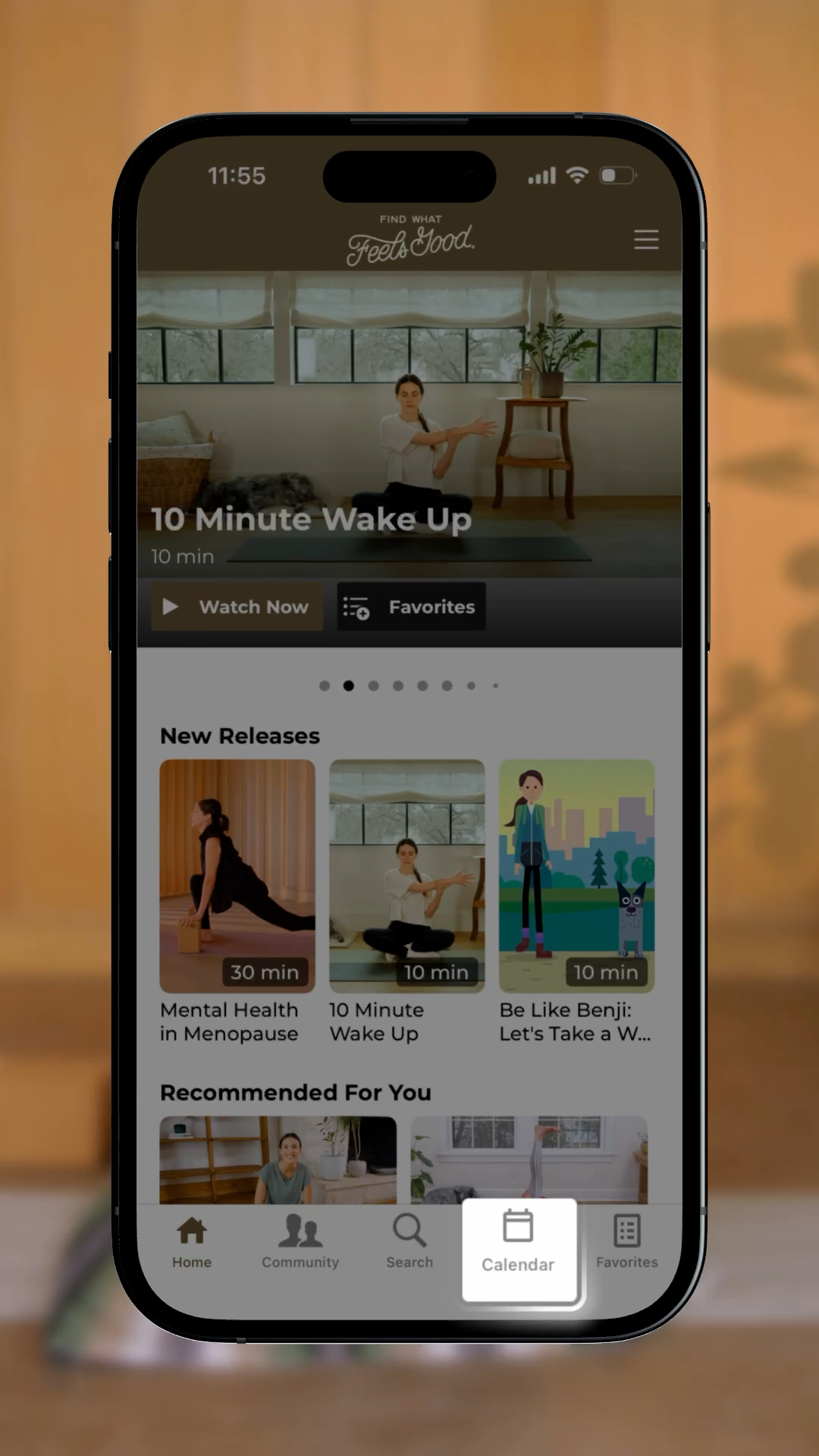
- Open the FWFG app and tap the Calendar tab. Here you'll find the current month's daily practices ready whenever you are.
- Tap a date to start your practice
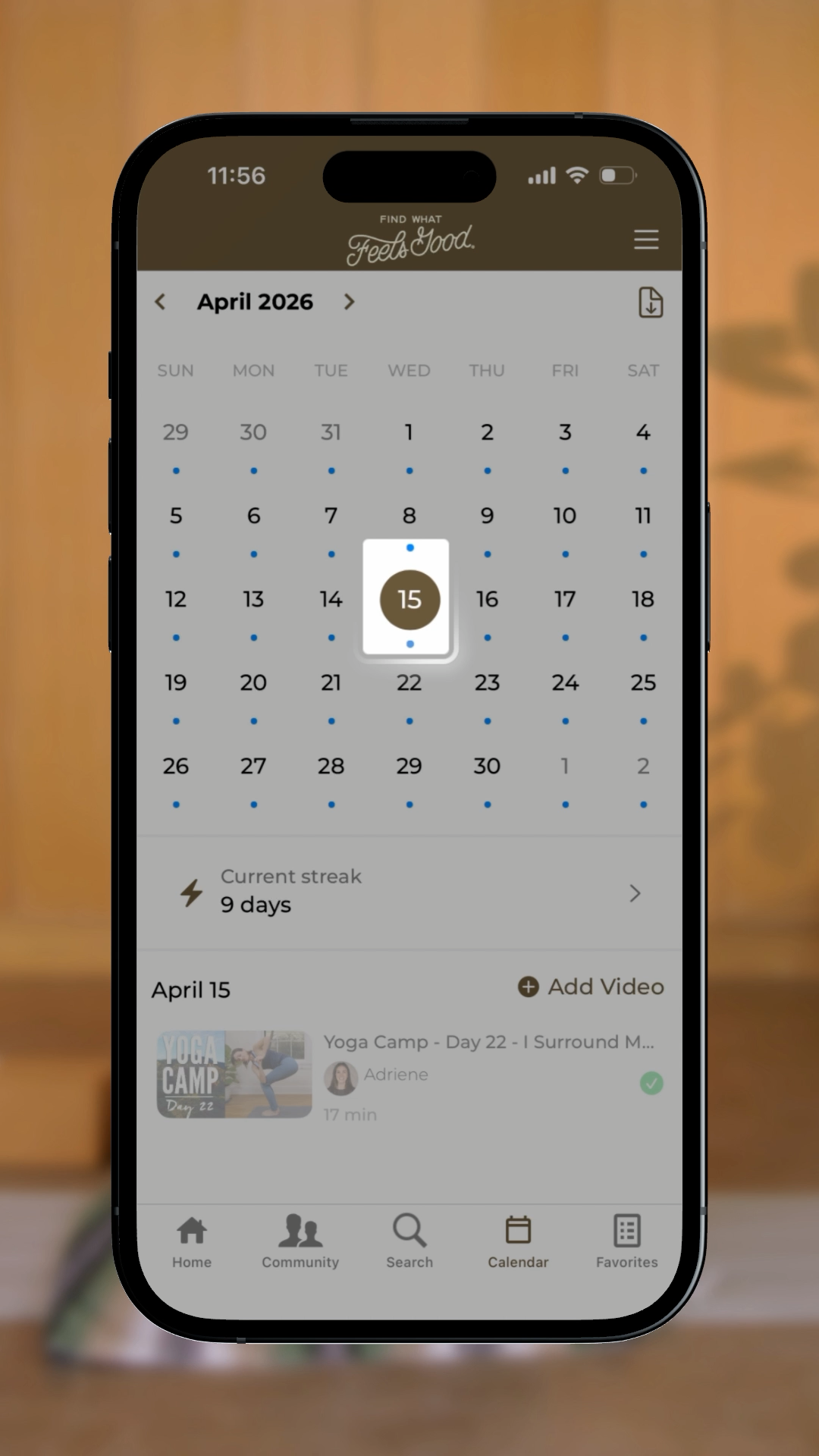
- Tap any date to view that day's practice, then press play when you're ready.
- Track your progress
- Once you complete a video, that day will turn green on your calendar — a simple way to track your progress and celebrate showing up for yourself.
- Why some dates are empty
- Some dates don't have a video yet — those spaces are intentionally saved for upcoming new releases and fresh content throughout the month.
- Add a different practice to your calendar
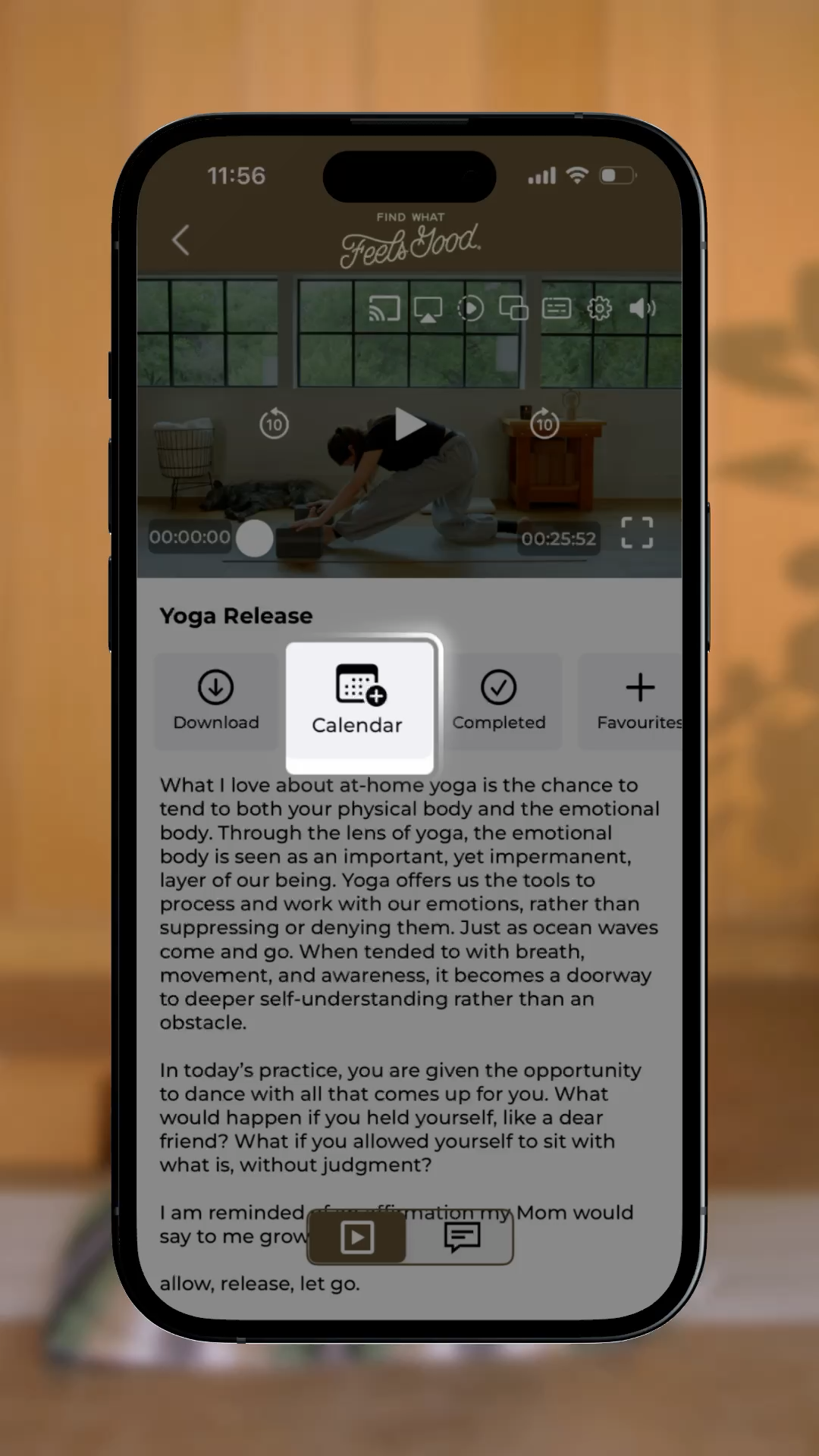
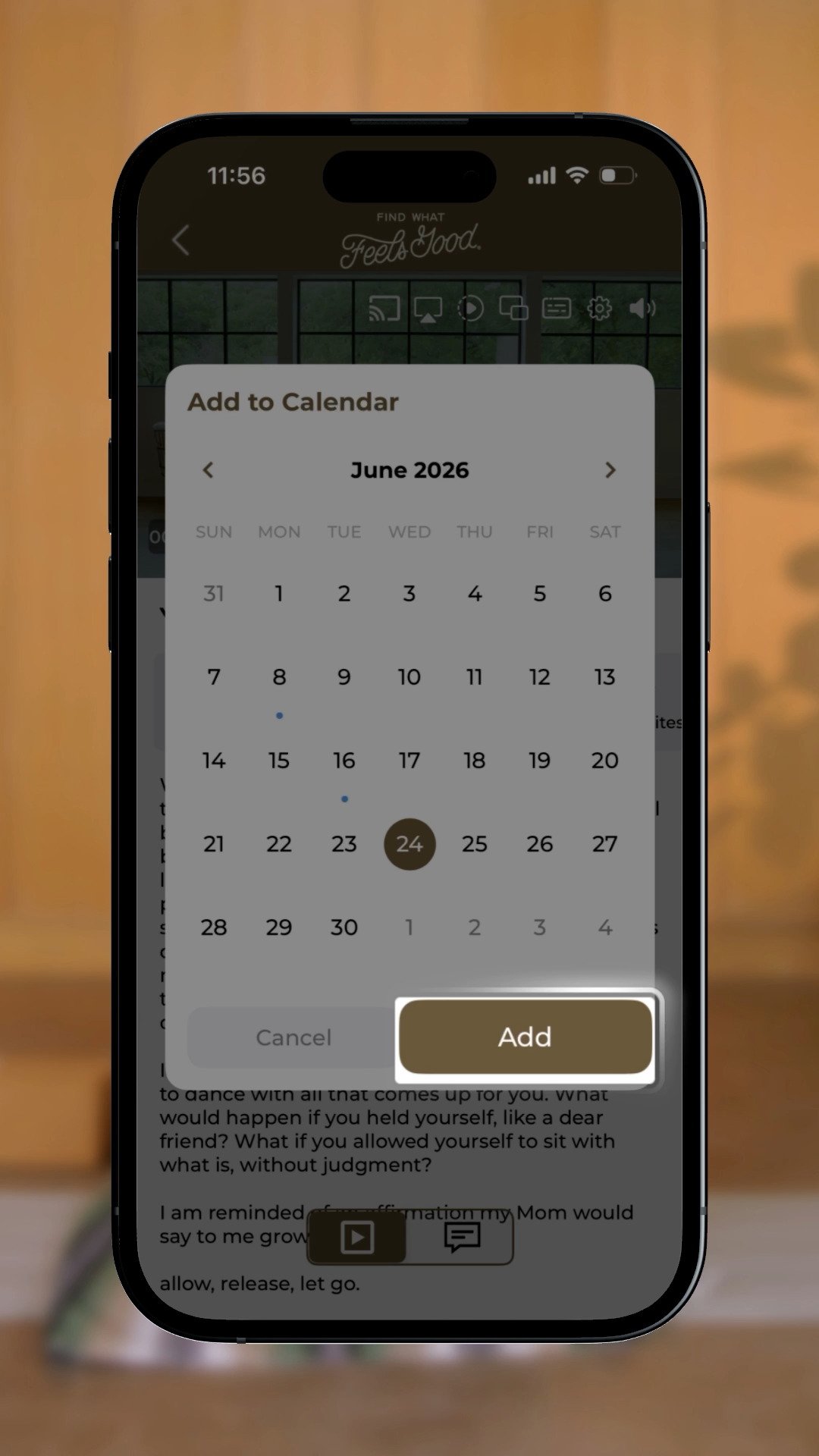
- Open the video you'd like to schedule, tap Add to Calendar, and choose your date.
- Download or print the calendar
- If you'd like to download or print the full calendar — or view the monthly theme — you can do that anytime on the FWFG website.
- Browse past and future months
- Use the arrows at the top of the calendar to move between months. Past calendars are always there to revisit, and future calendars are typically released closer to the end of the current month.
- Connect with the Community
- The Community space is always there to share your experience, cheer each other on, and practice alongside fellow members from around the world.
 |  |
 |  |
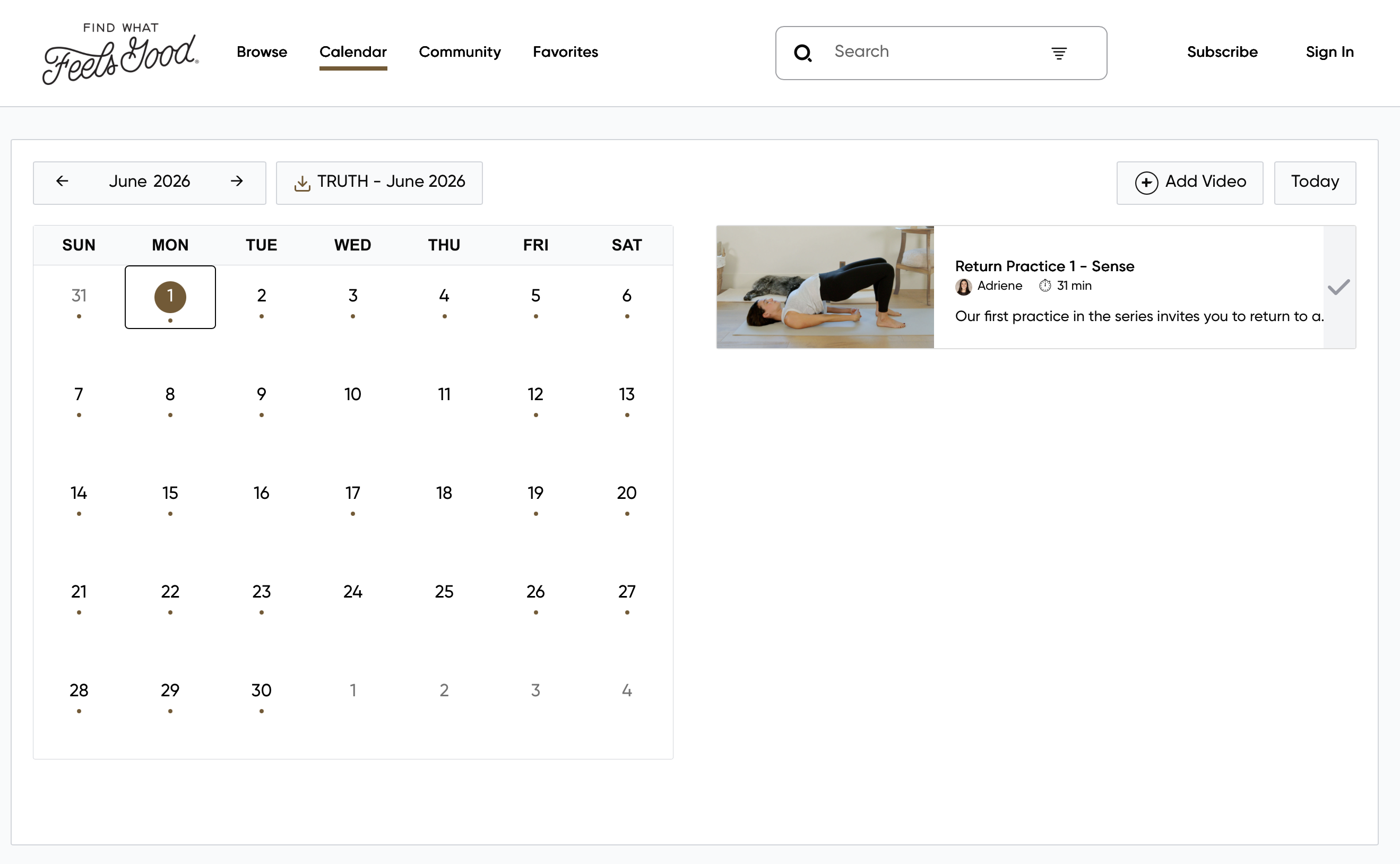
FWFG Website Calendar
You can download the monthly calendar on fwfg.com/calendar. To download the calendar, click the download button next to the month at the top e.g. "TRUTH - June 2026" in the screenshot below.
How did we do?
Cancel Subscription
Downloads and Offline Viewing